


How to add a device to the Omlet App
Step 1 - Download and install the Omlet App on your phone
- App Store: Download here
- Google Play Store: Download here
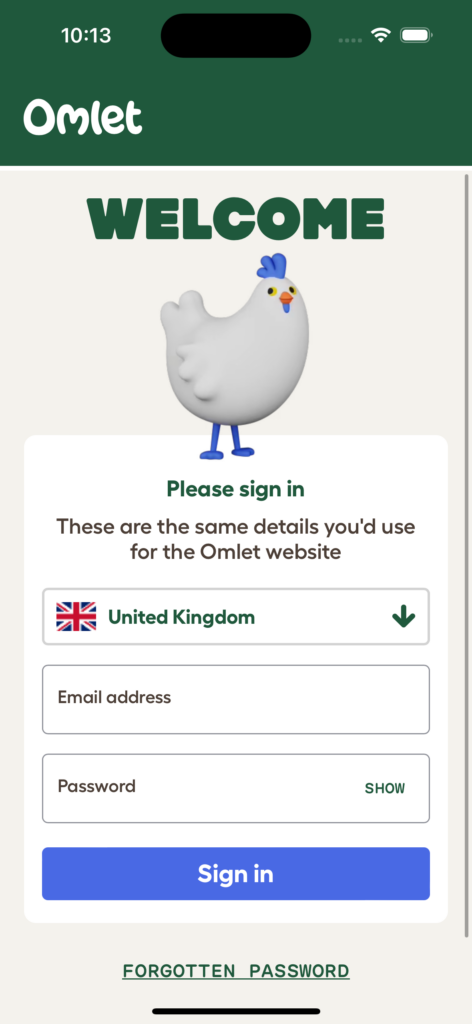
Step 2 – Log in
Open the Omlet App and log into your Omlet account. If you don’t have an Omlet account, you can register within the app.
Step 3 - Power on the device and enable the 'Discovery Mode'
The instructions on how to do this will vary based on your device. You can find out how to do this in the manual provided with your device.
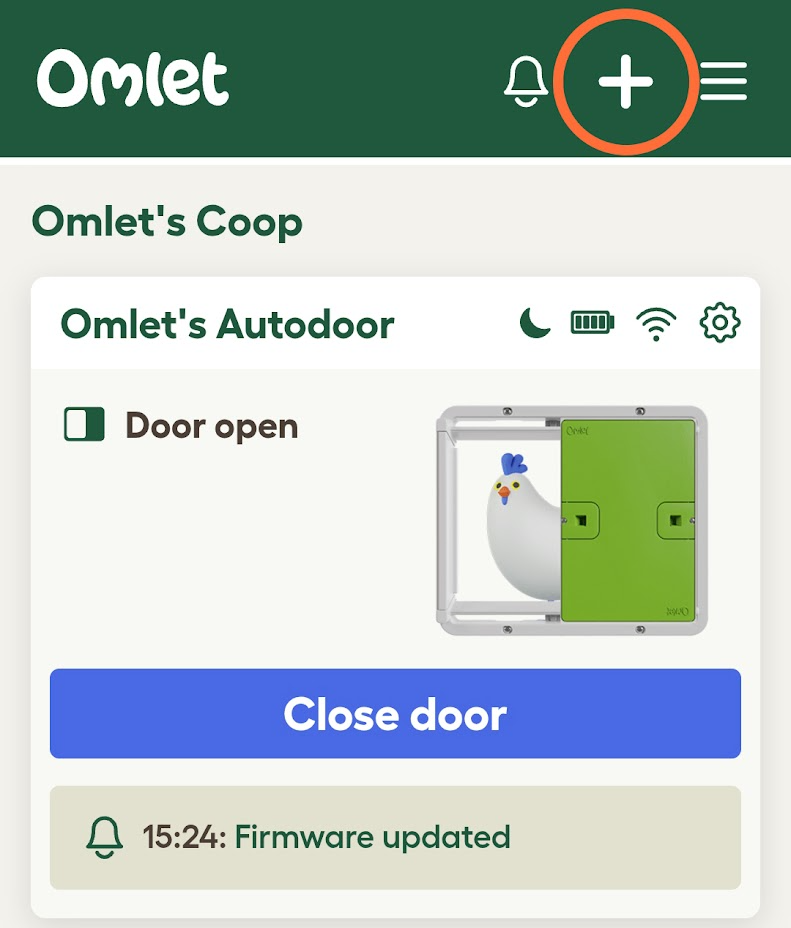
Step 4 - Select the plus icon
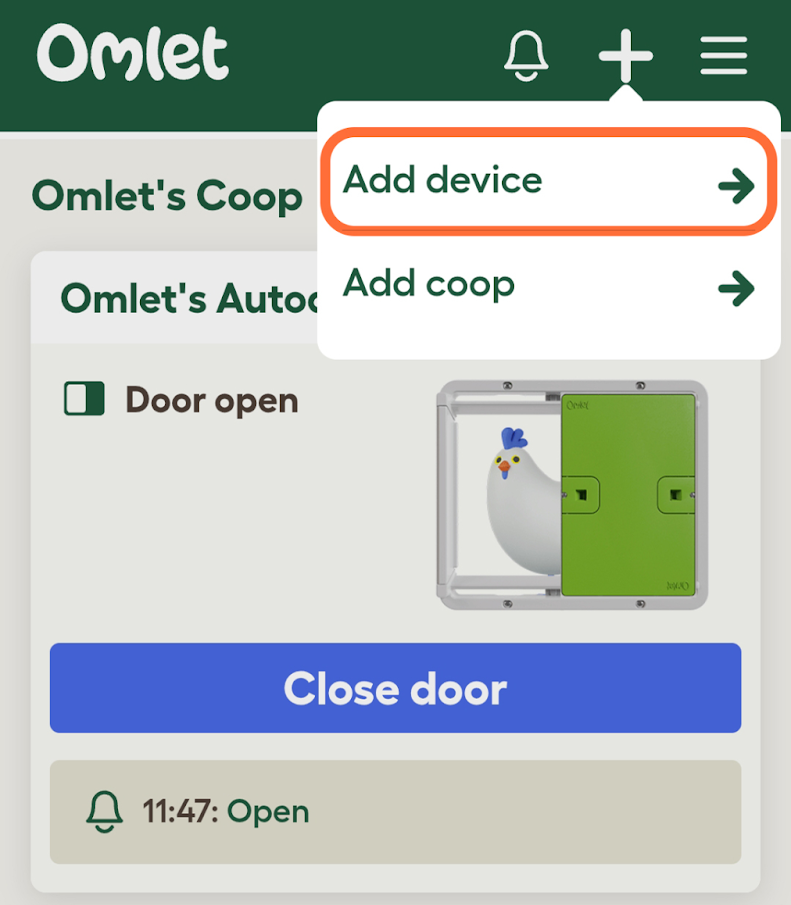
Step 5 - Click ‘Add device’
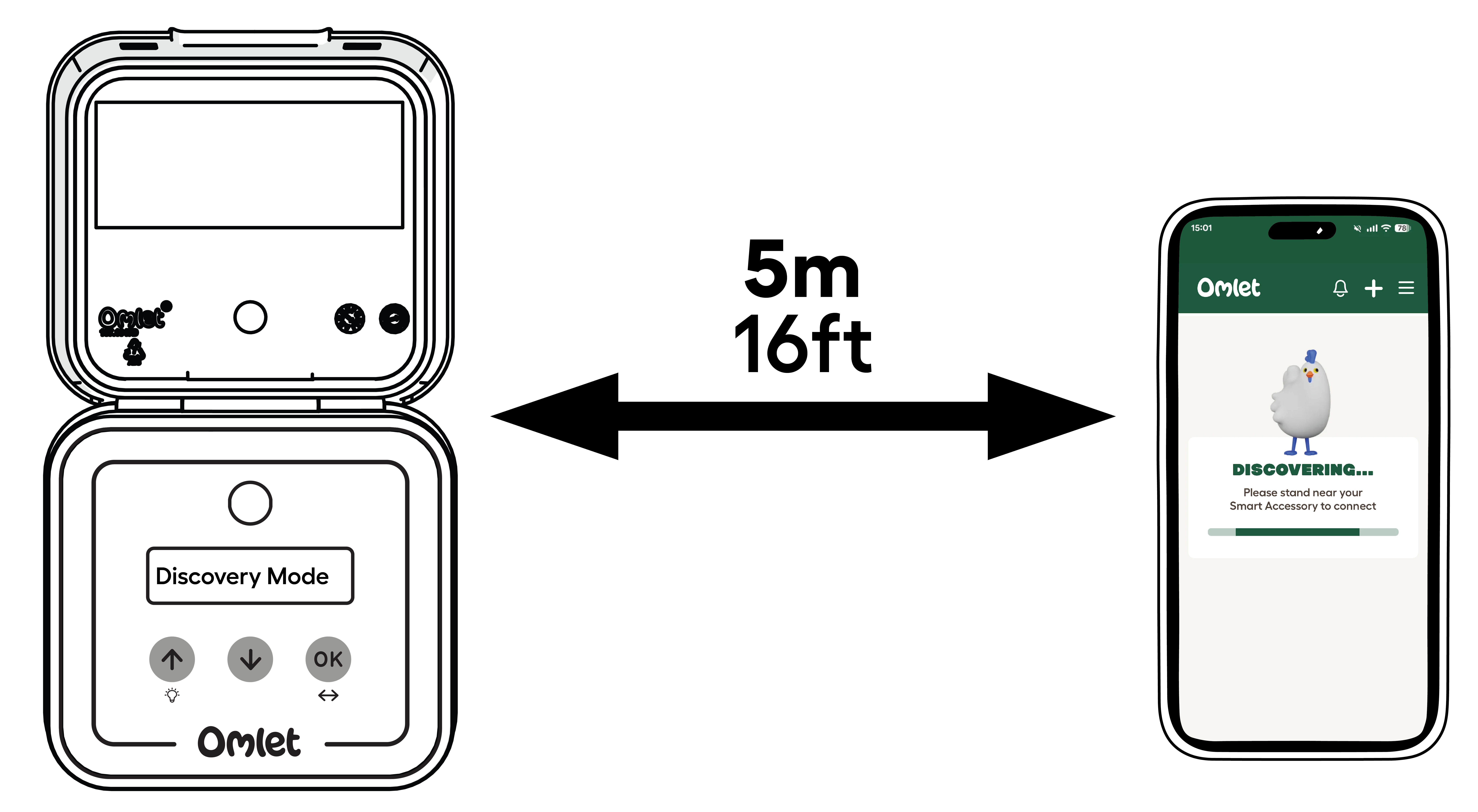
Step 6 - Make sure you are within range (5m) of the device to allow it to connect successfully
Step 7 - Press the blue Connect button
Make sure your Bluetooth is on in your phone settings and your device is in discovery mode.

If prompted, select ‘Allow’ the app access to Bluetooth and Location Services.
The app will scan for nearby Bluetooth devices. When it finds your device, the app will proceed to the next step.

 If the device cannot be found:
|
Step 8 - The app will scan for Wi-Fi, ask you to choose yours and input your Wi-Fi password
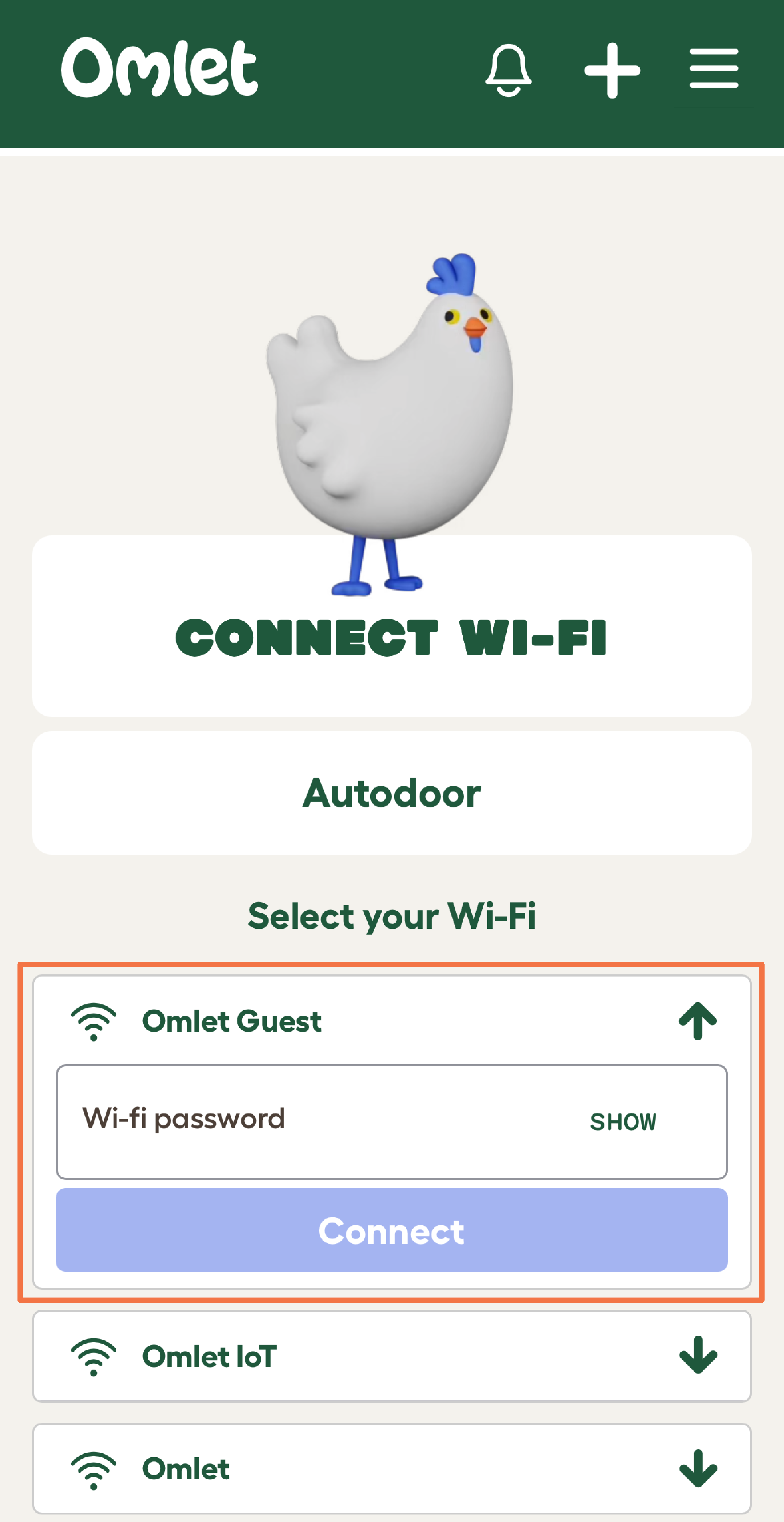
Your Wi-Fi password is transferred securely to the device, which will then attempt to connect to the network (Note: your Wi-Fi password is never stored within the app, or sent to our servers).
Step 9 - Click the ‘Complete your Setup’ pop up, and you’re finished!
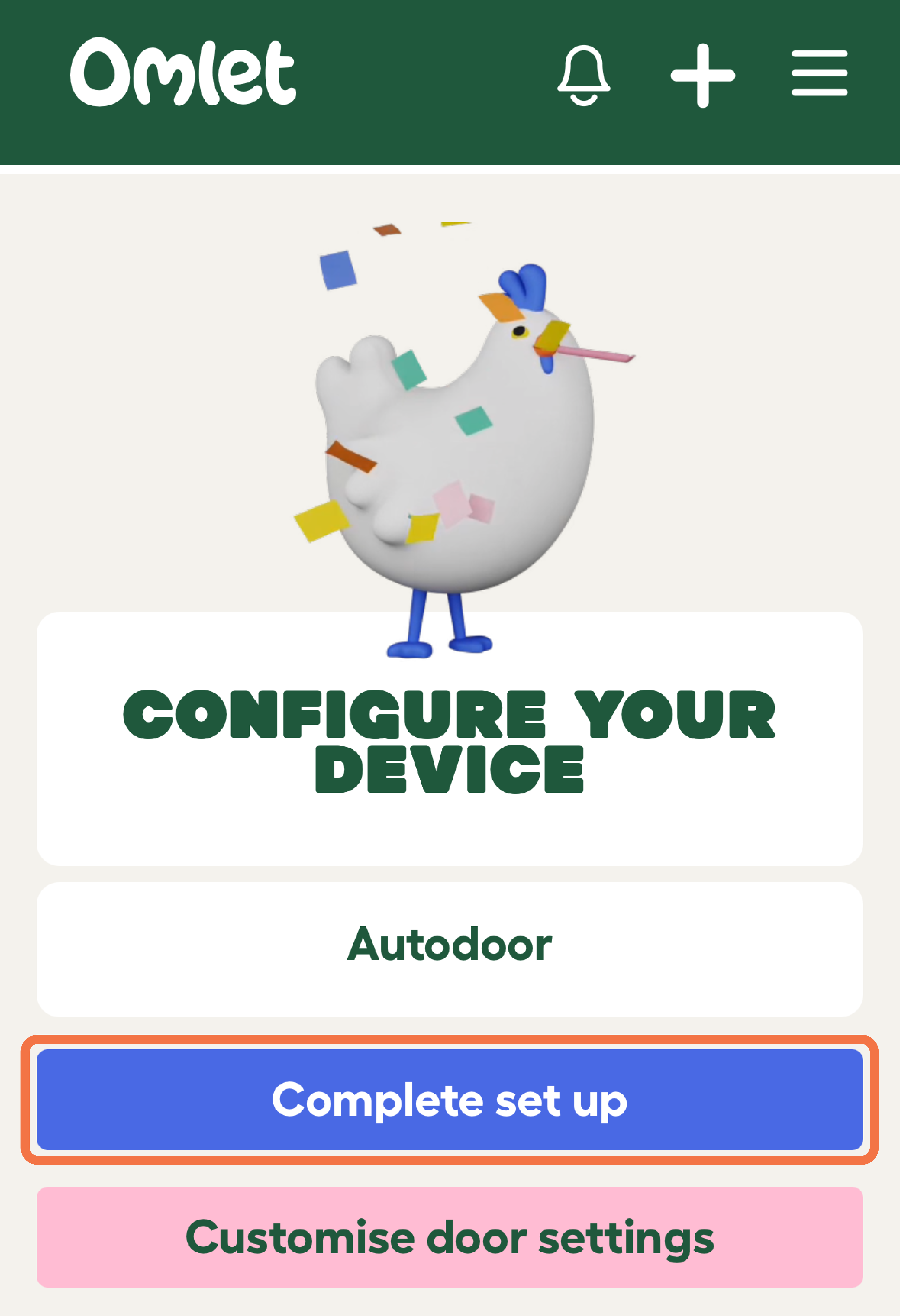
Step 10 - Your device will now reboot
After rebooting, your device will upload its status and configuration to our server and will be visible within the app. If the status is not displayed, wait a few minutes and then swipe down on your screen to refresh.